Welcome to the ultimate guide for optimizing your ScarFall 2.0 gameplay! In the world of Battle Royale, your settings aren’t just about making the game look pretty—they are a competitive advantage. A smooth, lag-free experience (high Performance and FPS) is critical for winning gunfights, but you also need enough Visuals to spot enemies hiding in the grass or shadows.
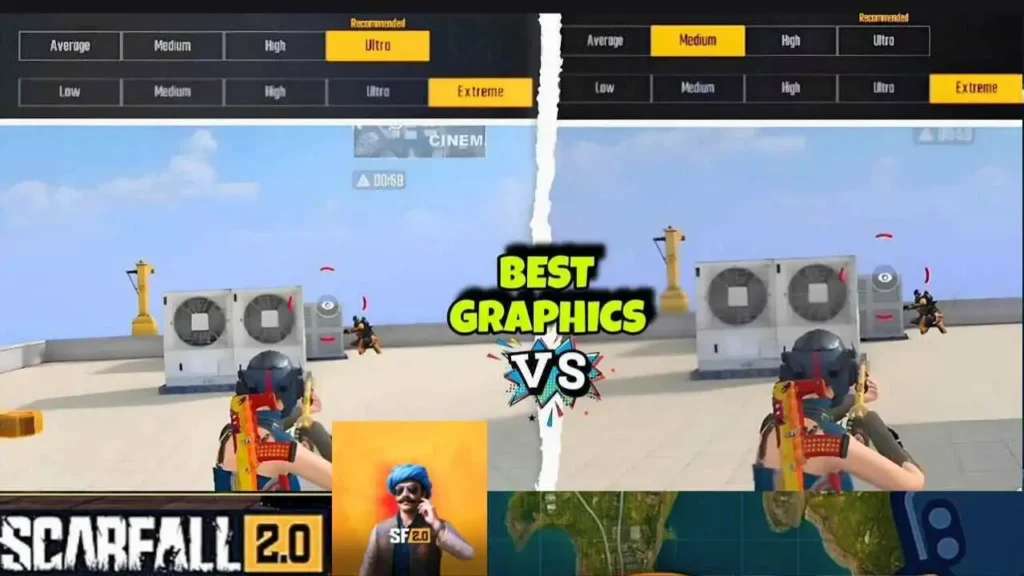
This article breaks down every key graphics setting in ScarFall 2.0, providing you with the exact formulas for achieving maximum FPS on low-end devices and the best-looking game on high-end phones. We’ve done the testing so you can jump straight into the action!
Table of Contents
The Golden Rule: Why FPS Always Wins
In a fast-paced game like ScarFall 2.0, Frame Rate (FPS) is more important than graphics quality.
- FPS (Frames Per Second): This is the number of static images your screen displays every second. Higher FPS means smoother animation, allowing you to track moving enemies more accurately and react faster.
- The Competitive Edge: A player running the game at 60 FPS will see an enemy almost twice as quickly as a player running at 30 FPS. When it comes to a clutch 1v1 fight, those milliseconds make the difference between a victory and a defeat.
Your goal should be to maintain the highest stable Frame Rate your device can handle, then adjust Graphics Quality afterward.
Breakdown of Key Graphics Settings
ScarFall 2.0 gives you three main settings to control your game’s balance. Here is a clear explanation of what each one does and why it matters:
| Setting | What It Controls | Impact on Performance | Impact on Visuals |
|---|---|---|---|
| Graphics Quality | Texture detail, draw distance, shadow quality. | VERY High. The biggest FPS drain. | High (Makes the world look sharp). |
| Frame Rate (FPS) | The smoothness of the motion (speed). | ZERO. Setting this high doesn’t hurt performance; the device just may not reach it. | High (Essential for competitive play). |
| Bloom Effect | A glow/lensing effect on lights and bright objects (e.g., cars, sun). | Low to Moderate. A small performance hit. | Low (Purely cosmetic; can obscure vision). |
Optimal Settings Formulas (Quick Tables)
Use the table that best matches your mobile device to achieve the best combination of Performance and Visuals.
The Zero-Lag Setup (Low-End Devices)
(Ideal for phones with 2GB to 4GB RAM or older processors)
| Setting | Recommended Value | Why This Works |
|---|---|---|
| Graphics Quality | Average or Low | Minimizes GPU and CPU load, ensuring maximum stability. |
| Frame Rate (FPS) | High | Aims for 40-50 FPS. Prioritizing speed over looks. |
| Bloom Effect | Off | Eliminates distracting screen glare and saves small amounts of processing power. |
The Balanced Gamer (Mid-Range Devices)
(Ideal for phones with 6GB to 8GB RAM and newer mid-range processors)
| Setting | Recommended Value | Why This Works |
|---|---|---|
| Graphics Quality | Ultra | Provides better textures and less visible pop-in. |
| Frame Rate (FPS) | Extreme | Your device is capable of locking a stable 60 FPS. |
| Bloom Effect | On | Adds a nicer visual flair, but keep an eye on performance. |
The Best Visuals (High-End Devices)
(Ideal for flagship or gaming phones with 12GB+ RAM for flagship processors)
| Setting | Recommended Value | Why This Works |
|---|---|---|
| Graphics Quality | Ultra (or HDR if available) | Run the game at its highest intended graphical fidelity. |
| Frame Rate (FPS) | Extreme | Essential for competitive play on any device. |
| Bloom Effect | On | Enjoy the full cinematic visual experience without any performance fear. |
Pro-Tips for Zero Lag
Even with the perfect settings, sometimes lag creeps in. Use these quick tips to secure smooth gameplay:
- Close Background Apps: Before launching ScarFall 2.0, manually close all other apps (social media, browsers, etc.) to free up RAM.
- Clear Cache: Periodically clear the game’s cache in your phone’s settings to remove temporary, unnecessary files.
- Download All Resources: Ensure all map packs and extra game resources are downloaded. Streaming them during a match can cause stutters.
- Use a Mobile Cooler: For long play sessions, a simple clip-on phone cooler can drastically reduce device overheating, which is the #1 cause of major FPS drops.
Frequently Asked Questions (FAQs)
What is the single most important setting for winning gunfights?
Frame Rate (FPS). Always aim for the highest FPS setting your device can consistently run (High or Extreme). If you have to choose between Low Graphics / Extreme FPS or Ultra Graphics / Low FPS, choose the former every time.
Should I keep Bloom Effect On or Off?
We strongly recommend keeping the Bloom Effect Off for competitive play, regardless of your device. While it makes lights look nicer, the slight glare can sometimes obscure enemy figures or movements, which is a big disadvantage.
My game still lags even on the lowest settings. What can I do?
This is likely a device limitation (low RAM/old CPU) or overheating.
1. Try playing on a fresh install of the game.
2. Ensure your phone’s OS (Android/iOS) is updated.
3. Use a fan or mobile cooler to keep the phone temperature down.
4. Reduce your phone’s screen resolution (if your phone has this option).
Is the ‘Ultra’ setting actually better than ‘High’ for visuals?
The jump from High to Ultra is visible (smoother textures, better shadows), but it comes with a steep performance cost. If you notice any stuttering or heating on Ultra, immediately drop it back to High.
Conclusion: Get Ready to Dominate!
By understanding the simple trade-off between Graphics Quality and Frame Rate, you are now equipped to customize ScarFall 2.0 for the best possible experience on your specific device. Go ahead, apply your ideal formula from the tables above, and enjoy the smooth, responsive gameplay needed to climb the ranks and secure those Chicken Dinners (or whatever ScarFall calls them!). Good luck on the battlegrounds!